
Cleaner Toolbox
SELBY TEAMTools
4.38.89K Reviews
- Version
- 1.1.7
- Installs
- 10.00M
- Age Rating
- Everyone
Screenshots
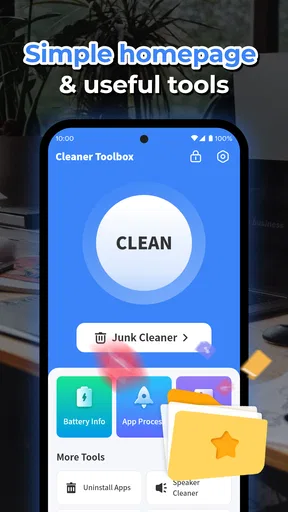
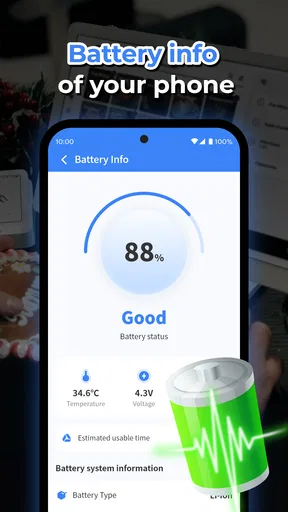
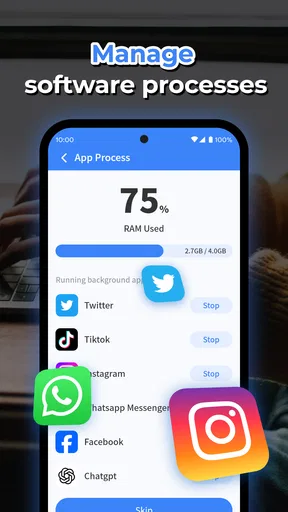
Our Review of Cleaner Toolbox
 Analysis by Appyee
When my phone starts feeling crowded, I want a quick way to see what might be weighing it down without digging through a maze of settings. Cleaner Toolbox is aimed at that kind of routine upkeep: it brings storage and resource checks together in a simple tools app. I’d think of it as a convenient starting point for a cleanup, rather than a guaranteed fix for every slowdown or battery worry.
What a quick cleanup can—and cannot—do
A scan is most useful when I have a specific reason to check my phone: storage is running low, an app has begun behaving sluggishly, or I simply want to review what is taking up room. The practical benefit is seeing a summary in one place. The decision that follows still matters, though. I would review what the app identifies before removing anything, especially if I am unsure whether a file is disposable.
For a safer routine, I’d start with a scan when I have time to look through the result, clear only what I recognize as unnecessary, and then check whether the storage situation has actually improved. That approach is less dramatic than tapping every cleanup option at once, but it makes it easier to notice what changed and avoids treating every suggested action as automatically useful.
How I’d use it during an ordinary day
Picture getting ready to record a family event and seeing that the phone is short on space. I’d use the storage overview to find a place to start, then decide whether the files flagged for cleanup are safe to remove. If the space problem is really caused by photos or large downloads I want to keep, a cleaner cannot make those choices for me; I would need to move or delete the material myself. That distinction is important: a tool can help surface the issue, but it cannot know which personal files matter to me.
I’d also avoid making cleanup a reflex after every small delay. A single app opening slowly may be a temporary hiccup, and repeatedly running boosters is not a substitute for identifying an app or task that is causing trouble. Cleaner Toolbox makes most sense as an occasional check-in when I have a clear reason to inspect storage or phone resources.
Who is likely to find it useful
This kind of toolbox is a good fit for someone who prefers a visible, straightforward starting point over searching through Android settings, particularly if storage checks and basic cleanup are tasks they otherwise put off. It can also suit people who want a quick overview before deciding what to manage themselves. SELBY TEAM’s app is free, has an Everyone age rating, and is listed for devices running Android 6.0 or later, so its stated compatibility covers a broad range of Android versions.
I would be more cautious if I already manage storage comfortably with Android’s built-in tools, or if I want detailed explanations before any resource-management action. The built-in storage screen can be the better choice for someone who wants fewer layers between them and the phone’s own controls. And if my main issue is one oversized video folder, sorting that folder directly may be faster than opening a separate cleaner.
Getting Started with Cleaner Toolbox
First off, downloading and setting up Cleaner Toolbox was a breeze. I found it easily on the app store, and it installed in a snap. As soon as I opened it, I was greeted with a user-friendly interface that didn’t make me feel like I needed a PhD to navigate. Everything is laid out in a straightforward manner, which I appreciate.
Once inside, the app gives you a quick overview of your phone's current status. You can see how much storage you're using, your memory status, and even a breakdown of what's eating up your space. It's like having a personal assistant who keeps tabs on your phone's health.
Features that Stand Out
One of the coolest features of Cleaner Toolbox is its ability to scan for junk files. I ran a scan, and it identified a bunch of unnecessary files that were just hanging around. With a simple tap, I cleared them out, and my phone instantly felt lighter. It's satisfying to watch those numbers drop!
The app also comes with a memory booster, which is super handy if you find your phone lagging. I tried it out, and it was like giving my phone a shot of espresso. Everything started running smoother, and switching between apps felt seamless.
Oh, and get this: there's even a CPU cooler. I don't know about you, but my phone tends to heat up when I'm binge-watching shows or gaming. This feature helps keep things cool, literally, by managing background apps and preventing overheating.
Using the tools with a little judgment
I wouldn’t use a memory booster as a permanent habit or expect it to create physical memory that the phone does not have. Closing background activity may make an interface feel more responsive for a while, but apps can reopen and use resources again. If one particular app keeps making the phone lag, checking that app’s own settings or updating it is a more targeted next step than repeatedly clearing everything.
The CPU cooler is best treated as a way to manage background activity, not as a repair for a hot battery or a guarantee that a device will stay cool under heavy work. If the phone warms up during a long gaming session or video stream, I’d first pause the demanding task and let the device rest. A utility can help with routine management, but it cannot remove the heat generated by sustained use.
Speed expectations and busy moments
Cleaner Toolbox is most convincing when I want a quick overview and a simple cleanup action. I would not judge its value by expecting every tap to produce a lasting speed boost. Phone performance depends on what is running, available storage, and the device itself; freeing some space may help with a crowded phone, while clearing memory may offer only a temporary change. That is why I’d compare how the phone feels before and after one focused action instead of running every tool and guessing which one helped.
During a busy stretch—switching between navigation, messages, camera, and music, for example—the temptation is to use a booster as soon as anything pauses. I’d first save what I’m doing and close only apps I no longer need. If the slowdown continues, a glance at the toolbox’s status summary can help me decide whether a cleanup is relevant. That small pause prevents the app from becoming another button I press without knowing what problem I am trying to solve.
Reliability, recovery, and sensible habits
For routine maintenance, I value clear feedback more than a dramatic claim that a phone has been transformed. The storage overview and scan give me a place to begin, but I would still make the final call about files and background activity. Before clearing anything, I’d make sure important photos, documents, and downloads are backed up or easy to find again. If I remove something I later need, recovery may depend on where it was stored and whether another copy exists, so prevention is the safer plan.
I would also avoid treating a cleaner as a cure for persistent crashes, a failing battery, or recurring overheating. Those problems call for a closer look at the specific app or the device, and sometimes a built-in system setting is the better tool. A reasonable routine is to use Cleaner Toolbox when I have a concrete storage or responsiveness concern, then stop once I have addressed it rather than keeping cleanup running as a ritual.
Device fit and practical limits
Cleaner Toolbox is a tools app from SELBY TEAM, and its current version is 1.1.5. It has a 4.4 average from around 79,000 ratings, with more than 10 million installs; those figures suggest that many people have tried it, though popularity alone cannot tell me whether it fits a particular phone or cleanup style. Since it is free, trying the basic workflow is an easy way to decide whether its overview is more convenient for you than Android’s own storage controls.
On an older or modest device, I would keep my expectations measured: a cleaner cannot change the hardware’s limits, and scanning or managing resources is not the same as upgrading the phone. If storage is nearly full, the lasting fix may be moving large files or removing apps I no longer use. If the phone is already running smoothly, there may be little reason to run a cleanup just because the option is available.
Overall Performance
I've been using Cleaner Toolbox for a few days now, and it's made a noticeable difference. My phone feels faster, and I have more space for the things I love, like photos and new apps. It's like having a little cleanup crew on standby, ready to tidy up whenever things get messy.
The battery saver feature is another gem. It optimizes your phone's battery usage by closing apps running in the background that you don't really need. After activating it, I noticed my phone holding a charge longer, which is always a win in my book.
Battery use and the performance trade-off
I’d treat battery saving as a convenience to try when I want to reduce background activity, not as a promise of extra hours in every situation. Closing apps can also mean that I need to reopen them or wait for them to refresh when I return. For a day when I rely on timely notifications or frequent app switching, I’d be selective about what I close; for a quieter stretch, reducing activity may feel like a worthwhile trade-off.
There is a similar balance with cleanup: a quick scan can make storage easier to understand, but the most useful result is a clear decision about what I can safely remove. I would not clear files simply to make a number look better, and I would not expect a memory tool to fix a slow connection or an app-specific fault. Using the right tool for the actual problem is more dependable than asking one toolbox to solve everything.
Where it sits among cleaner apps
Compared with opening Android’s built-in storage controls, a dedicated toolbox can feel more approachable because it groups several maintenance ideas into one place. The trade-off is that built-in controls may be preferable when I want to work directly with system settings or inspect a particular app’s storage. Cleaner Toolbox makes more sense when I value an at-a-glance overview and quick access to cleanup and resource tools; it is less compelling for someone who wants precise, file-by-file management or already has a simple routine that works.
My practical tip is to choose one task before opening the app: check what is consuming space, see whether background activity is relevant, or try a battery-saving adjustment. Then look at the result and stop if the problem is resolved. This makes it easier to tell whether the tool helped and reduces the chance of changing several things at once without knowing which change mattered.
Final Thoughts
All in all, Cleaner Toolbox is a solid app for anyone looking to boost their phone's performance without diving into complicated settings. It's straightforward, effective, and makes managing your phone's resources a no-brainer.
If you're tired of running out of space or dealing with lag, give Cleaner Toolbox a try. It's like a spring cleaning session for your device, and who doesn't love a fresh start?
Keep your phone happy and healthy – you and your device deserve it! And if you're curious to see the magic in action, you can find the download link right here on our site. Happy cleaning!
Verdict
Strengths of Cleaner Toolbox
- User-friendly interface with easy navigation.
- Effective at freeing up storage space.
- Boosts device performance noticeably.
- Includes advanced cleaning tools.
- Supports multiple languages.
Limitations of Cleaner Toolbox
- Contains ads that can be intrusive.
- Some features require in-app purchases.
- Occasional false positives in cleaning.
- May drain battery if used frequently.
- Limited support for older devices.
Similar Picks in This Category
View All
Google LLC4.0

Gboard - the Google Keyboard
Google LLC4.5

Google Play services
Google LLC4.3

Google Play Store
Google LLC4.9

Files by Google
Google LLC4.5

SHAREit: Transfer, Share Files
Smart Media4U Technology Pte.Ltd.4.3
Frequently Asked Questions
What features does Cleaner Toolbox offer for optimizing my device?
Cleaner Toolbox provides a comprehensive suite of tools designed to enhance your device's performance. It includes features like junk file cleaning, memory optimization, battery saver, and app manager. These tools work together to free up storage, improve speed, and extend battery life, ensuring your device runs efficiently.
Is Cleaner Toolbox safe to use on my device?
Yes, Cleaner Toolbox is designed with user safety in mind. It uses non-intrusive methods to clean and optimize your device without affecting critical system files. Additionally, regular updates ensure compatibility with the latest Android and iOS versions, maintaining the app's safety and reliability.
How does Cleaner Toolbox improve my device's battery life?
Cleaner Toolbox improves battery life by identifying and shutting down apps that run in the background, consuming power unnecessarily. The app's battery saver feature optimizes device settings, like screen brightness and timeout, to minimize energy consumption and extend battery life significantly.
Can I manage my apps effectively with Cleaner Toolbox?
Absolutely. Cleaner Toolbox includes an app manager that allows you to easily manage installed applications. You can view detailed app information, uninstall unwanted apps, and even move apps to an SD card if supported, helping you maintain organized and efficient app usage.
Does Cleaner Toolbox support all types of devices and operating systems?
Cleaner Toolbox supports a wide range of devices running on Android and iOS. It is regularly updated to ensure compatibility with the latest operating system versions, providing a seamless experience for users across different devices and platforms.
